

What you’ll learn:
- How to view session logs, messages, and events
- How to debug issues
Viewing Logs
Access logs for your sessions through the Metorial dashboard:- Navigate to your project
- Select the Logs tab
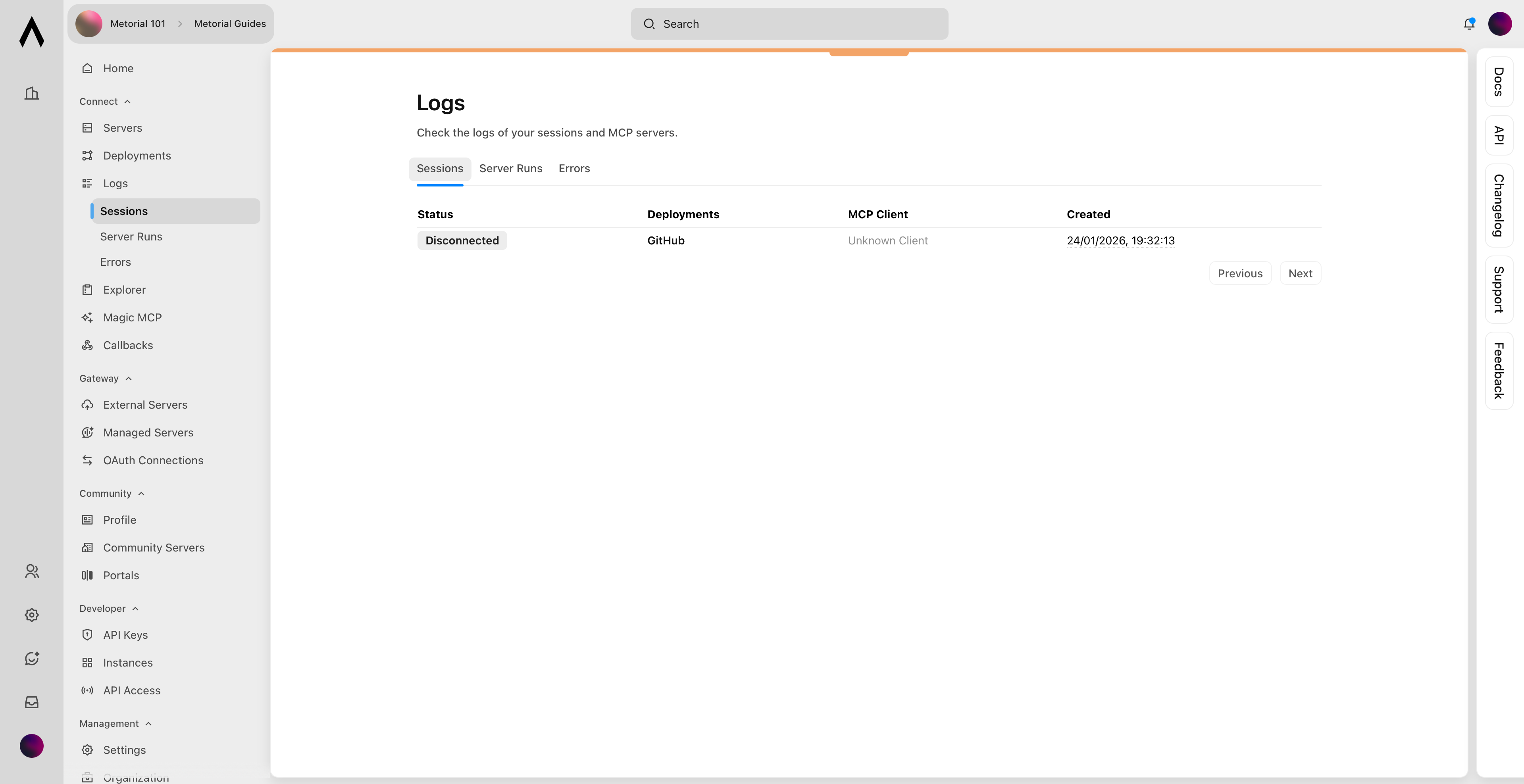
Session Logs
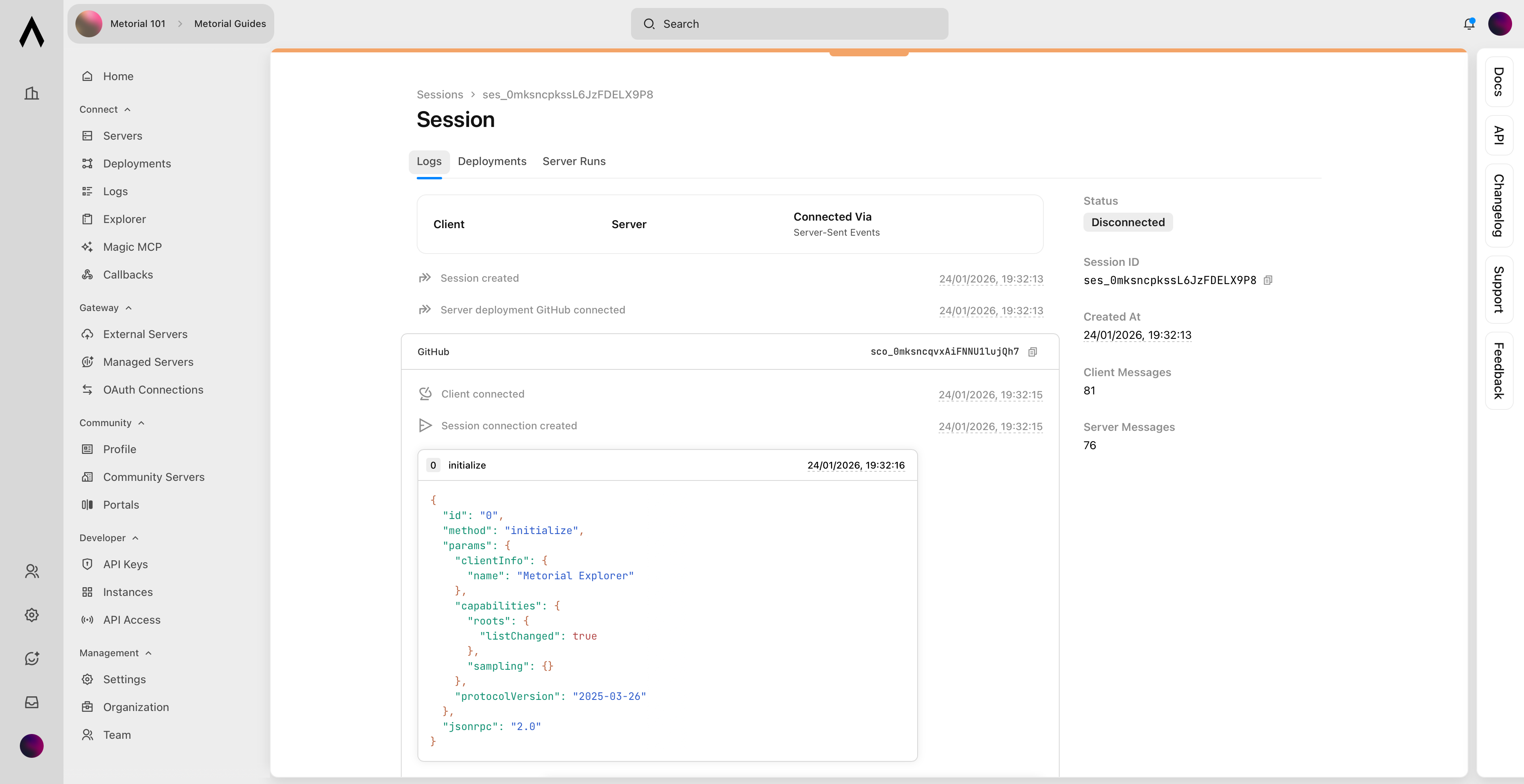
See details for each session:- Creation timestamp
- Providers attached
- Tool calls made
- Any errors
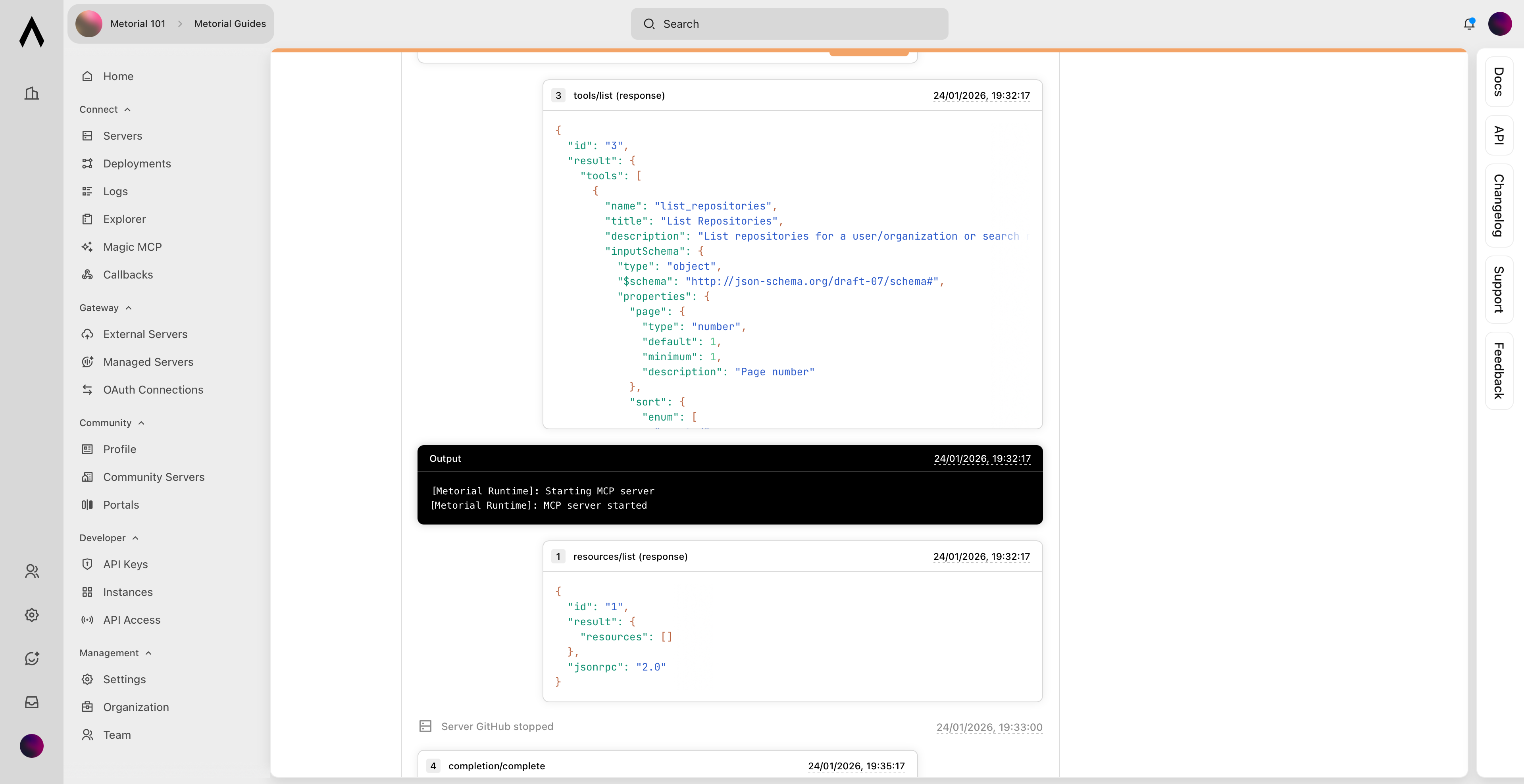
Tool Call Details
Expand individual tool calls to see:- Input parameters
- Response data
- Execution time
- Error messages (if any)
Session Data via API
Sessions expose detailed monitoring data through the API:Messages
Every tool call and MCP protocol message is recorded as a session message. Each message includes:type:tool_call,mcp_control, ormcp_messagestatus:waiting_for_response,succeeded, orfailedinputandoutputpayloads- Timing information
Events
Session events capture significant occurrences:- Connections opening and closing
- Errors
- State changes
Connections
Each client that connects to a session creates a connection. You can inspect connection state (connected / disconnected), transport type, and usage statistics.
Debugging Common Issues
Authentication Errors
- Verify your API key is correct
- Check that provider auth configs exist and haven’t expired
- For OAuth providers, the user may need to re-authorize via a new setup session
Tool Execution Errors
- Verify tool parameters match the schema
- Check for rate limiting from external services
- Review error messages in session logs
Getting HelpIf you can’t resolve an issue:
- Export relevant logs from the dashboard
- Note session and provider deployment IDs for affected sessions
- Contact support at support@metorial.com